Buttons Not Working
If your Astrion Remote's physical buttons don't respond or don't trigger the expected actions, follow this guide to diagnose and fix the issue.
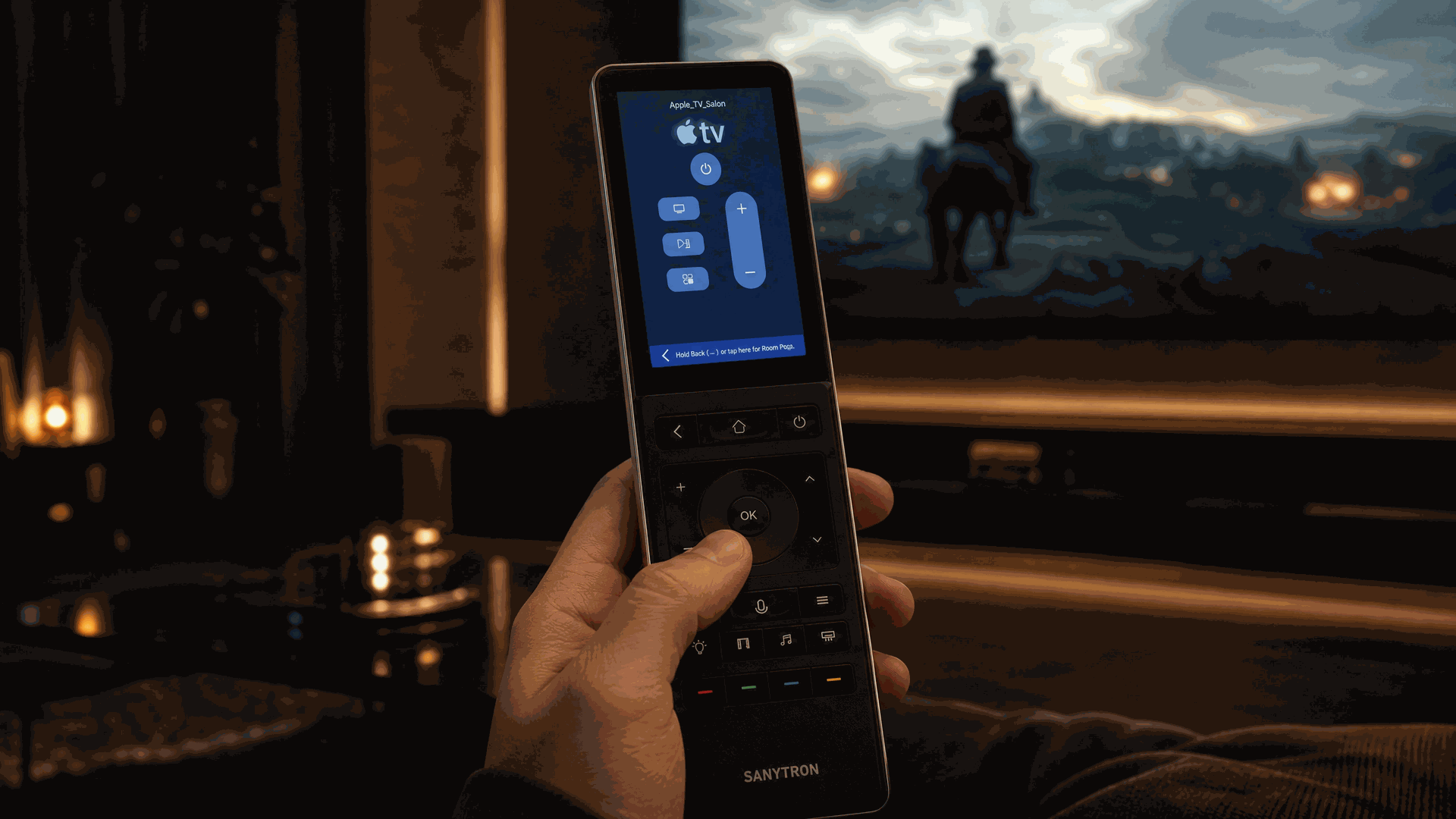
Overview
Astrion Remote's physical buttons can stop working for several reasons. The most common causes are:
- Entity binding issues: The button is not correctly mapped to a Home Assistant entity
- Entity unavailable: The mapped entity is offline or unavailable in Home Assistant
- Configuration error: The shortcut configuration is incorrect
- Firmware or RosCard version mismatch: Button mapping may break after updates
- Button press type mismatch: Short press vs long press confusion
Quick Check: Before diving into detailed troubleshooting, try the Quick Checklist in the main Troubleshooting guide.
Key Mapping & Shortcut Configuration
Before diving into troubleshooting, it's helpful to understand how button mapping works on the Astrion Remote. Physical buttons can be transformed into one-touch smart home controls.
Configuration Path
The basic configuration flow is:
1 Settings
On your Astrion Remote, go to Settings from the home screen.
2 Shortcut
Select Shortcut from the Settings menu.
3 Select Key
Choose the physical button you want to configure. Each button can be customized independently.
4 Choose Action
Select what happens when you press the button. Options include:
- Device: Control a specific Home Assistant entity
- Scene: Activate a Home Assistant scene
- Script: Trigger a Home Assistant script
- Dashboard: Open a specific dashboard view
- Action: For example, "Light Dash" or "Curtain Dash" — these correspond to the icons on the physical keypad
5 Bind Entity/Service/Scene
Complete the binding by selecting the specific entity, service, or scene you want to control. Once set up, pressing the physical button will trigger the configured action.
💡 Pro Tip — Short Press & Long Press
You can assign different actions for short press and long press on most keys. This effectively doubles the number of shortcuts available on your remote.
🔑 Example: Short press the Light button to toggle the living room lights. Long press the same button to activate "Movie Mode" scene.
Button Icons on the Remote
The physical icons on the remote keypad correspond to the action types you can configure. For example:
- 💡 Light — Configure as "Light Dash"
- 🪟 Curtain — Configure as "Curtain Dash"
- 🎵 Music — Configure as "Media Dash"
- ❄️ AC — Configure as "Climate Dash"
Once configured, the icons on the remote keypad will match their assigned functions. The user manual (download here) shows the complete mapping of physical buttons to actions.
OTA (Over-The-Air) Firmware Upgrades
Your Astrion Remote improves over time with feature additions and enhancements. Button mapping functionality may be expanded or improved with firmware updates.
- Checking for Updates: Navigate to Settings → About → Software Version
- Update Notification: A red dot will appear next to the version number if an update is available
- Installation: Ensure the remote is on Wi-Fi and has sufficient charge. Updates download and install automatically.
⚠️ Important: After a firmware update, you may need to resave your button configurations or rebind shortcuts. This is a known requirement for major version upgrades.
For detailed instructions on configuring shortcuts, see the Shortcut Configuration Guide.
Step 1 — Check Button Binding
The most common cause of unresponsive buttons is that the button is not bound to any entity or the binding is incorrect.
TV Card Button Mapping
1.1 Open TV Card Configuration
In Home Assistant, open the dashboard containing your TV Card and click Edit to open the card configuration.
1.2 Verify Key Mappings
Check that each button key has a valid mapping. The TV Card supports mapping up to 8 custom physical buttons:
entities:
  - key: POWER
    type: remote
    entity_id: remote.living_room_tv
    value: POWER
  - key: VOLUME_UP
    type: remote
    entity_id: remote.living_room_avr
    value: VOLUME_UP
key— must match a valid button key (POWER, VOLUME_UP, KEY_A, etc.)entity_id— must point to a valid remote entityvalue— must be a valid command for the entity
In the TV Card settings, select your Astrion remote model to define which physical buttons are available for mapping.
Global Shortcut Configuration
1.3 Check Global Shortcuts
On your Astrion Remote, go to Settings → Shortcut Configuration and verify that your physical buttons are correctly assigned.
- Check if the button is bound to a device, scene, or script
- If the button shows "Unbound", it won't do anything when pressed
For detailed instructions on configuring shortcuts, see the Shortcut Configuration Guide.
💡 Tip: A button can be bound in two places — in the TV Card configuration (for context-aware behavior) and in Global Shortcuts (for system-wide behavior). If both are configured, the TV Card binding takes precedence when the TV Card is active.
Step 2 — Verify Entity Status
Even if the button is correctly bound, the entity it's trying to control may be unavailable.
2.1 Check Entity Availability
In Home Assistant, go to Developer Tools → States and search for the entity ID that your button is bound to.
- If the entity is "unavailable", it cannot be controlled
- Check if the device is powered on and connected
- Check if the entity exists at all (typo in entity_id?)
2.2 Test the Entity Directly
Try controlling the entity directly from the Home Assistant UI:
- If it works from HA but not from the button, the issue is with the button binding
- If it doesn't work from HA either, the issue is with the device or integration
⚠️ Important: If the entity has been renamed or removed, the button binding will break. You'll need to rebind the button to the new entity.
Step 3 — Rebind the Button
If the binding is correct but the button still doesn't work, try rebinding it.
Rebind in TV Card
3.1 Remove and Re-add the Key Mapping
In the TV Card configuration:
- Delete the problematic key mapping
- Save the card
- Re-add the key mapping with the same configuration
- Save the card again
Rebind Global Shortcut
3.2 Reconfigure Shortcut
On your Astrion Remote:
- Go to Settings → Shortcut Configuration
- Select the problematic button
- Re-select the action (device, scene, or script)
- Save the configuration
3.3 Refresh the Remote
After rebinding, pull down from the top of the screen and tap Refresh to apply the changes.
Step 4 — Restart and Update
If rebinding doesn't work, a restart or update may resolve the issue.
4.1 Restart Your Astrion Remote
On your remote, go to Settings → System → Restart. Wait for the remote to reboot and test the buttons again.
4.2 Check for Firmware Updates
Go to Settings → About → Software Version. If a red dot is shown, an update is available. Install the update via OTA.
See the Firmware Updates Guide for detailed instructions.
4.3 Update RosCard
In Home Assistant, check HACS for RosCard updates. Button mapping may break after a RosCard update if you don't resave your cards.
- After updating RosCard, resave all your TV Cards
- This refreshes the button bindings
⚠️ Important: If you're upgrading from an older version, you may need to rebind all physical shortcut keys after the update. This is a known requirement for major version upgrades.
Quick Checklist
Use this checklist to quickly rule out the most common causes:
- Button binding: Check TV Card mapping and Global Shortcuts
- Entity exists: Verify the entity ID in Developer Tools
- Entity available: Check if the entity is "unavailable"
- Short press vs long press: Some buttons support both
- Rebind: Remove and re-add the button mapping
- Restart: Restart the remote and Home Assistant
- Update: Check for firmware and RosCard updates
- Factory reset: Last resort
✅ Checked all boxes? If the issue persists, please contact Sanytron support for further assistance.
Video Tutorials
For visual learners, here are video guides that walk through button configuration and troubleshooting:
TV Card Button Remapping
Learn how to customize button behavior with TV Card mapping
Watch on YouTube →Related resources
Still having button issues?
Our support team and community are here to help.