Entity Management
Learn how entities work with Astrion Remote and RosCard — from binding devices to your dashboard to troubleshooting common entity-related issues. Understand the philosophy behind the architecture.
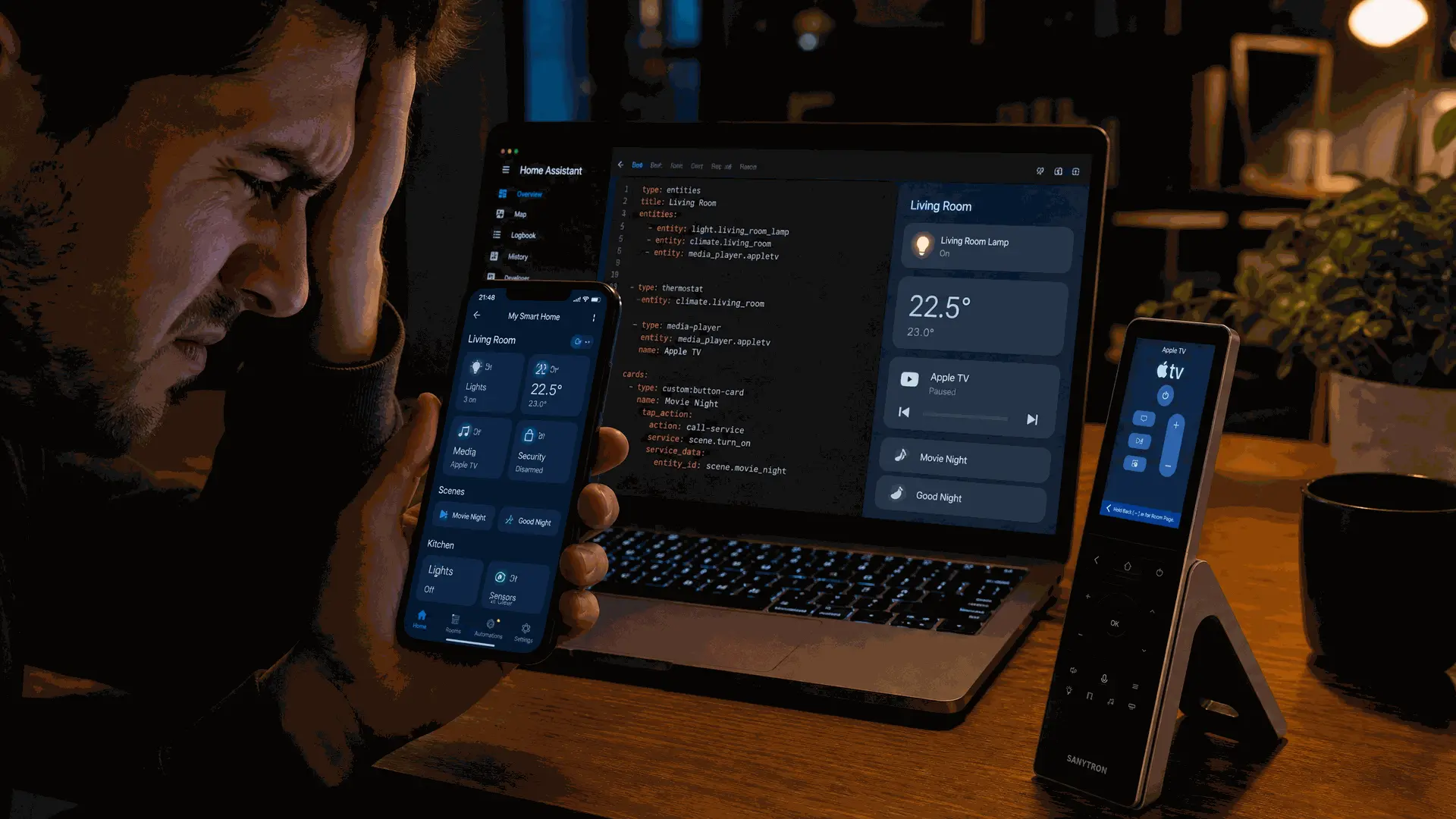
Key Concept: How Entity Management Works
Before we dive into the "how," it's important to understand a core design principle of Astrion Remote: Home Assistant is the brain, Astrion is the interface.
This means that you do not "add entities to Astrion" directly. Instead, you add entities to your Home Assistant dashboard using RosCard cards, and Astrion Remote mirrors those cards.
│ Home Assistant │
│ ┌─────────────────────────────────────────────────────┐ │
│ │ RosCard: Light Card │ │
│ │ Entities: light.living_room, light.kitchen │ │
│ └─────────────────────────────────────────────────────┘ │
│ ┌─────────────────────────────────────────────────────┐ │
│ │ RosCard: Climate Card │ │
│ │ Entities: climate.bedroom, climate.living_room │ │
│ └─────────────────────────────────────────────────────┘ │
└─────────────────────────────────────────────────────────────┘
│
│ Sync
▼
┌─────────────────────────────────────────────────────────────┐
│ Astrion Remote │
│ ┌─────────────────────────────────────────────────────┐ │
│ │ Light Card (mirrored) │ │
│ │ → Living Room Light (toggle) │ │
│ │ → Kitchen Light (toggle) │ │
│ └─────────────────────────────────────────────────────┘ │
│ ┌─────────────────────────────────────────────────────┐ │
│ │ Climate Card (mirrored) │ │
│ │ → Bedroom AC (temperature control) │ │
│ │ → Living Room AC (temperature control) │ │
│ └─────────────────────────────────────────────────────┘ │
└─────────────────────────────────────────────────────────────┘
This architecture gives you maximum flexibility — all automation logic stays in Home Assistant, while Astrion provides a fast, reliable, and focused control interface. You manage entities where they belong: in Home Assistant.[reference:0]
💡 Key Insight: RosCard is configuration only — it generates card layouts and entity bindings[reference:1]. All control logic remains inside Home Assistant. This means you can modify your dashboard without affecting your automations.
What is an Entity?
In Home Assistant, an entity is a representation of a device or data point in your smart home. Examples include:
light.living_room— a smart light bulbclimate.bedroom— a thermostat or air conditionermedia_player.apple_tv— an Apple TVswitch.outdoor_lights— a smart switchcover.living_room_blinds— motorized blindsfan.ceiling_fan— a ceiling fan
Each entity has a unique entity_id that you use to reference it in automations, scripts, and RosCard configurations.
📌 Note: Astrion Remote itself does not appear as an entity in Home Assistant. It is a control terminal, not a device to be integrated[reference:2]. It communicates via the WebSocket API, similar to the mobile app[reference:3].
How to Manage Entities on Astrion
Since Astrion mirrors your Home Assistant dashboard, managing entities means managing your RosCard cards in Home Assistant.
1 Open Your Home Assistant Dashboard
Navigate to the dashboard that your Astrion Remote is configured to display.
2 Edit a RosCard or Create a New One
Click Edit Dashboard and select an existing RosCard or add a new one. Each card type is designed for specific entity types:
- Light Card —
light.*entities - Climate Card —
climate.*entities - TV Card —
media_player.*andremote.*entities - Switch Card —
switch.*entities - Cover Card —
cover.*entities - Scene Card —
scene.*andscript.*entities - Fan Card —
fan.*entities - Media Player Card —
media_player.*entities - Weather Card —
weather.*entities - Statistics Card — monitors
light.*,switch.*, andclimate.*entities
3 Bind Entities to the Card
In the card configuration, add the entities you want to control. Each card can hold multiple entities of the same type.
Example: Light Card Configuration
4 Enable Independent Display (Optional)
For any card you want to appear as a full-screen view on your Astrion Remote, enable Independent Display. This is useful for room-specific control views.
5 Save and Refresh Your Remote
Click Save in Home Assistant. On your Astrion Remote, pull down from the top of the screen and tap Refresh to load the updated cards[reference:4].
⚠️ Important: After updating RosCard to a new version, you may need to resave all your RosCards to refresh the entity bindings. This is a known requirement for version updates.
Custom Entity Naming
Starting from RosCard V1.0.38, you can assign custom names (aliases) to entities on your Astrion Remote without changing the actual entity name in Home Assistant.
This is useful for:
- Readability: Display "Living Room Lamp" instead of
light.living_room_lamp_2 - Clarity: Use shorter, more descriptive names for the remote's small screen
- Organization: Group and label entities in a way that makes sense for your home
Example:
💡 Tip: Use short, clear aliases — the Astrion Remote's 3.1-inch screen works best with concise labels.
Troubleshooting
Entities Not Showing on Astrion Remote
- Refresh the remote: Pull down from the top of the screen and tap Refresh[reference:5].
- Verify entity exists: Make sure the entity is available in Home Assistant and not "unavailable"[reference:6].
- Check card configuration: Ensure the entity is correctly bound to the RosCard.
- Resave the card: Open the card configuration and click Save again to refresh the binding.
- Update RosCard: If you're running an older version, update RosCard via HACS.
Entity Controls Not Responding
- Check entity status: Verify the entity is available in Home Assistant.
- Test in Home Assistant: Try controlling the entity directly from the Home Assistant UI to rule out connection issues.
- Verify entity type: Ensure the entity is compatible with the card type (e.g., a
switchentity on a Light Card won't work). - Check permissions: Make sure your Astrion Remote token has permission to control the entity.
Entities Show "No Matching Device"
- This typically happens after a RosCard update. The internal card ID system may have changed.
- Fix: Resave each affected RosCard card in your Home Assistant dashboard.
- For major upgrades: Delete the card and re-add it with the same entities.
Custom Entity Name Not Showing
- Ensure you're using the
aliasparameter in the card configuration. - Save the card and refresh your Astrion Remote.
- If the issue persists, remove and re-add the entity with the alias.
Multiple Cards Not Displaying Simultaneously
- This can happen if you have too many cards on a single dashboard view.
- Fix: Create separate dashboard views or reduce the number of cards per view.
- Consider using the Independent Display feature for full-screen card views.
🔧 Still Having Issues? Please create a forum post with: your current software version, RosCard version, the entity type and entity_id you're trying to control, and any error messages displayed.
Related resources
Need help with entity management?
Our support team and community are here to assist you.