Create a Long-Lived Access Token
A Long-Lived Access Token allows your Astrion Remote to securely connect to Home Assistant without requiring your username and password each time. Follow this guide to generate your token.
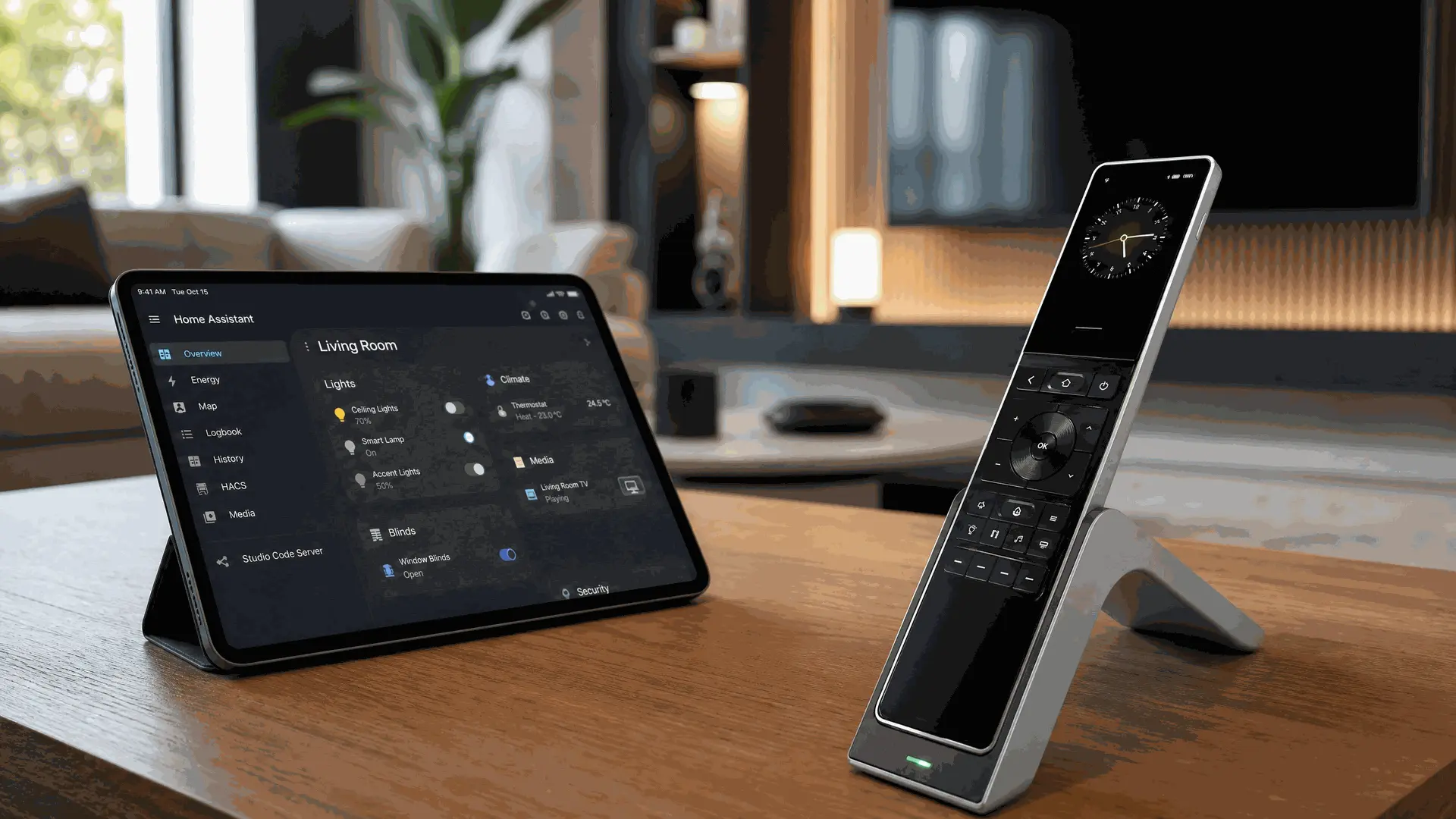
What is a Long-Lived Access Token?
A Long-Lived Access Token is a secure authentication method used by Home Assistant to allow external devices and applications to connect to your server without needing your password.
For Astrion Remote, the token is used for:
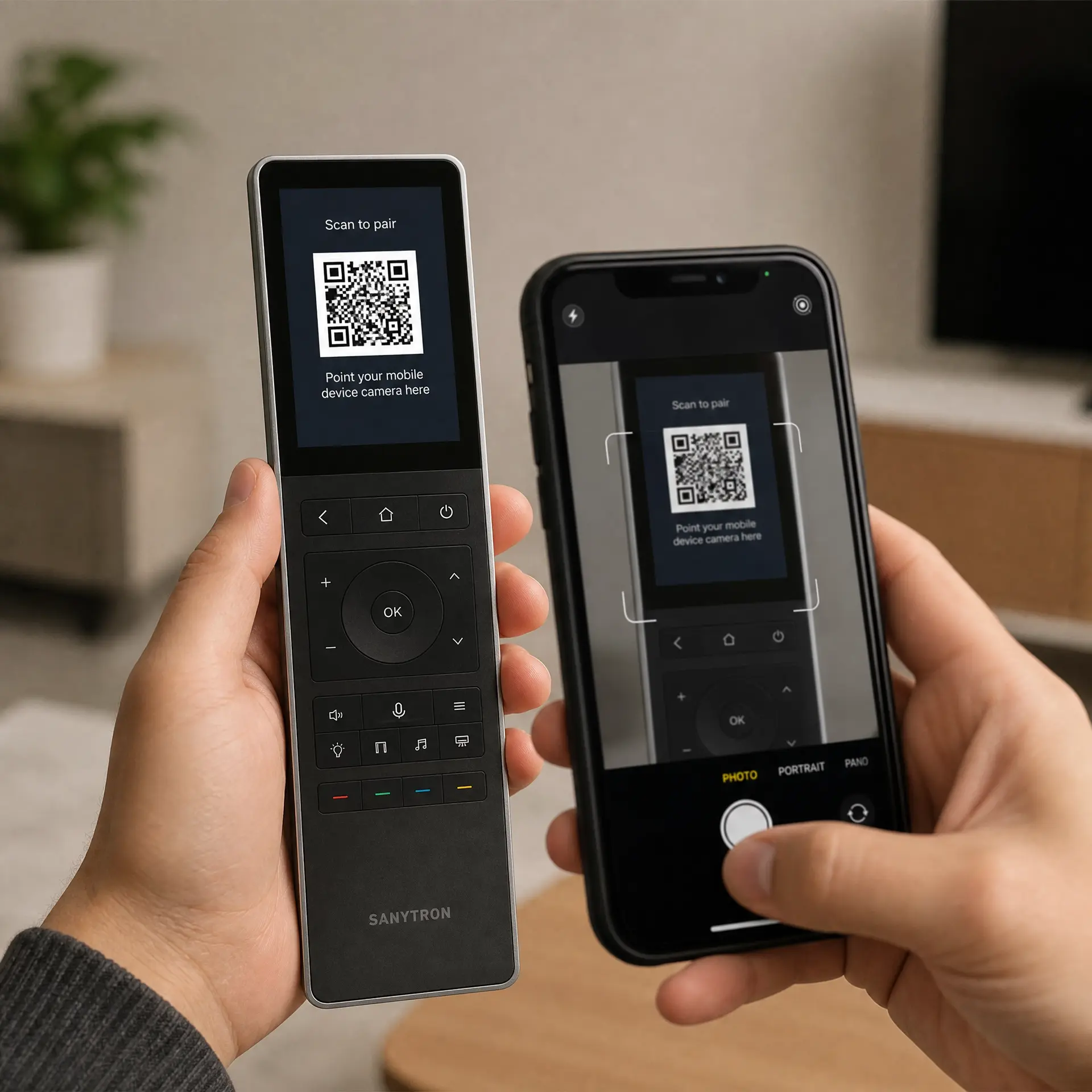
- QR Code Login: The token is embedded in a QR code for quick pairing
- Secure Communication: All data between your remote and HA is authenticated via this token
- Revocable Access: You can revoke the token at any time if the remote is lost or compromised
🔒 Security Note: Treat your Long-Lived Access Token like a password. Keep it secure and never share it publicly. If you suspect it has been compromised, revoke it immediately from Home Assistant.
Step-by-Step Guide
1 Open Home Assistant
Open your Home Assistant web interface in a browser.
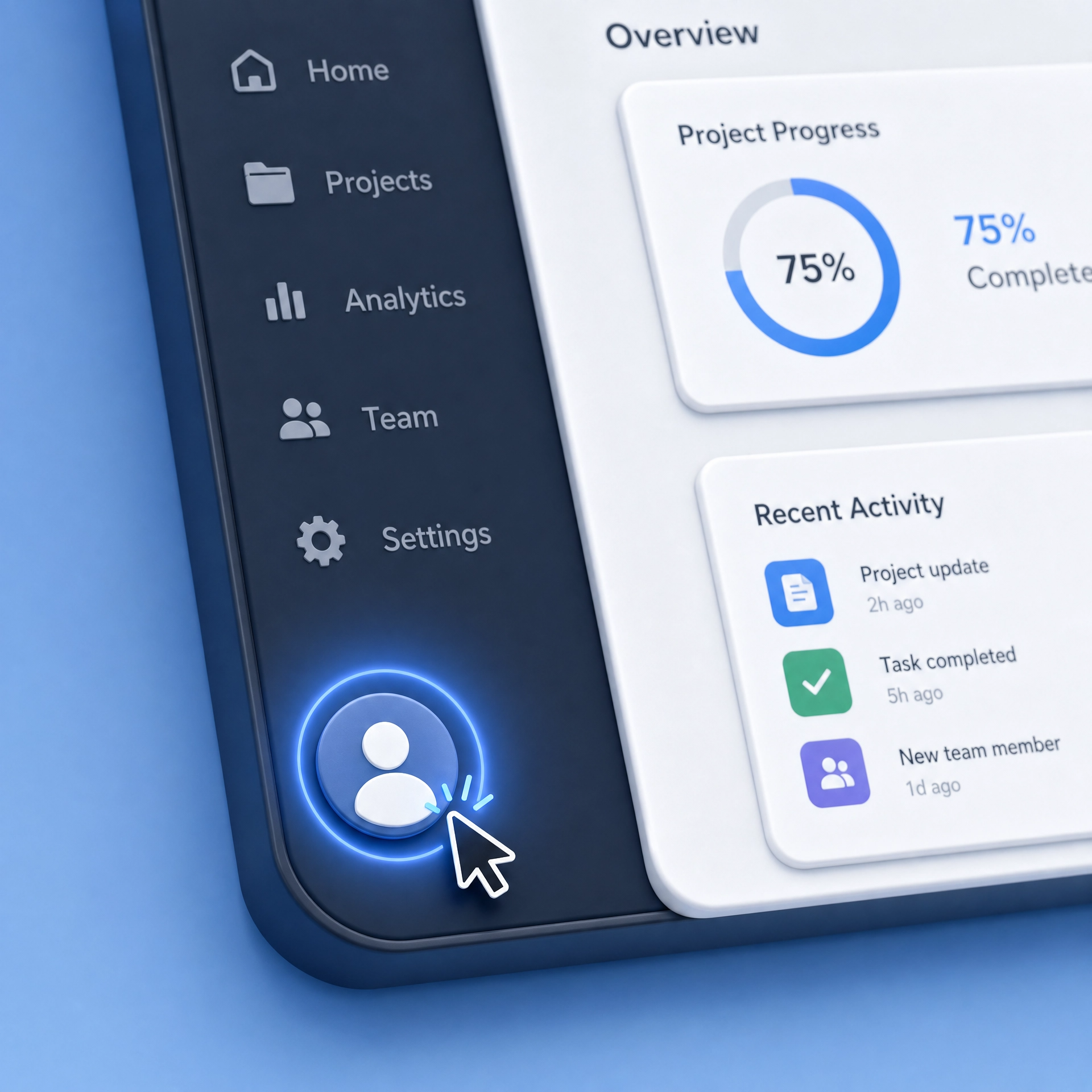
2 Click Your Profile
Click on your profile icon in the bottom-left corner of the screen.
3 Navigate to Security
Scroll down to the Security & Privacy section and click
Long-Lived Access Tokens.
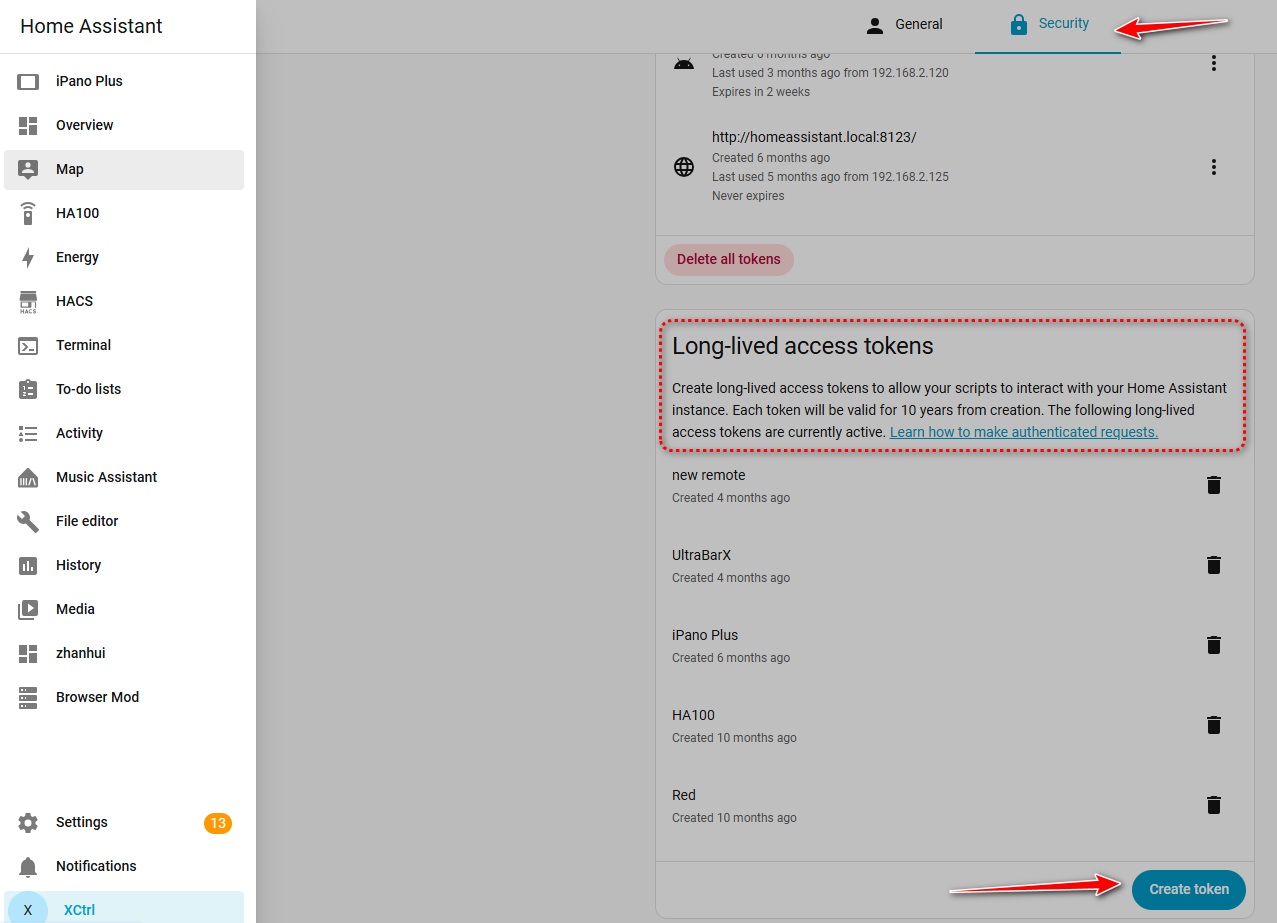
4 Create Token
Click the Create Token button.
- Enter a name for the token, such as "Astrion Remote"
- Click Create
5 Copy Your Token
Immediately copy the generated token. You will not be able to see it again after closing the dialog.
Example token format:
⚠️ Important: The token will only be displayed once. If you lose it, you will need to create a new token.
6 Use Your Token
Your token is now ready to be used for pairing your Astrion Remote with Home Assistant. You'll need to include it in your QR code or manual login configuration.
✅ Done! Your Long-Lived Access Token has been created. Next, pair your Astrion Remote using this token.
Managing Your Token
Viewing Active Tokens
- Go to Home Assistant → Profile → Security → Long-Lived Access Tokens
- You'll see a list of all active tokens with their creation dates
Revoking a Token
- If you lose your remote or suspect unauthorized access, revoke the token immediately
- Click the Delete (🗑️) icon next to the token in the list
- The remote will no longer be able to connect to your Home Assistant
When to Create a New Token
- If you've revoked the previous token
- If you're setting up a second Astrion Remote (each remote should have its own token)
- If you've changed your Home Assistant URL or domain
🔒 Security Best Practice: Create a separate token for each Astrion Remote you own. This allows you to revoke individual devices if needed, without affecting others.
Troubleshooting
Token Creation Fails
- Ensure you are logged into Home Assistant with administrator permissions
- Check that your browser is up to date
- Try using a different browser or clearing your browser cache
Token Not Working
- Make sure you copied the token exactly — it is case-sensitive and contains no spaces
- Verify the token has not been revoked (check the list in Security settings)
- Confirm the token is being used with the correct Home Assistant URL
Lost Token
- Tokens cannot be retrieved after creation — you'll need to create a new one
- Revoke the old token if you still have access to it in the list
- Update your Astrion Remote with the new token
🔧 Still Having Issues? Please create a forum post with details about your Home Assistant version and the specific error you're encountering.
Related resources
Need help with your token?
Our support team and community are here to assist you.