Dashboard Configuration
Learn how to build and customize your Astrion Remote dashboard using RosCard cards, views, and sections. This guide includes YAML examples drawn from real-world configurations.
Overview
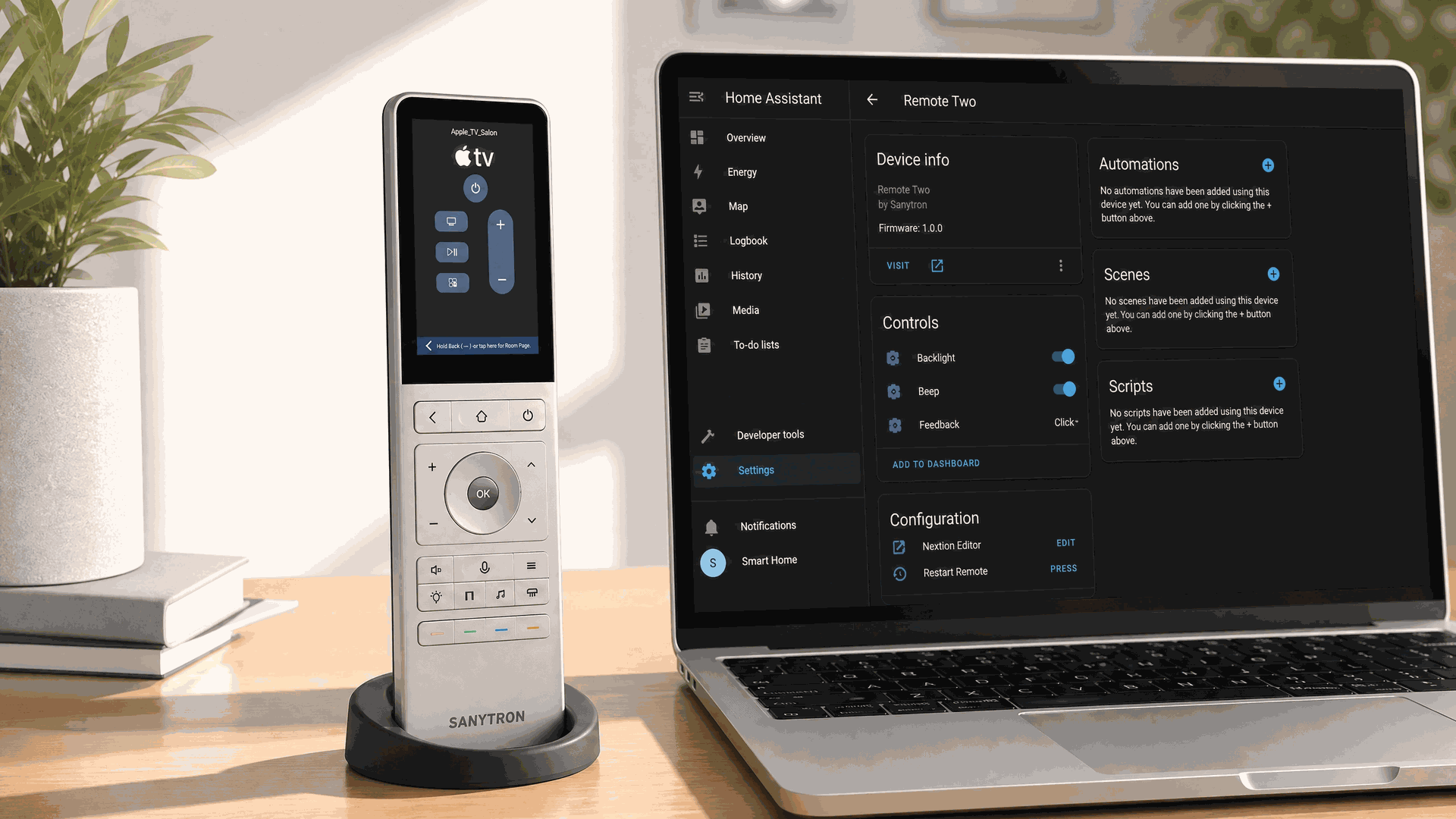
Your Astrion Remote's dashboard is created entirely in Home Assistant using standard Lovelace configuration. The remote mirrors the dashboard you designate as its default view.
This guide explains how to structure your dashboard for the best experience on Astrion's 3.1-inch touchscreen, using both RosCard custom cards and standard Home Assistant cards.
Dashboard Structure
- Views: Top-level navigation tabs (accessible via swipe or tab bar)
- Sections: Layout containers within a view (organize cards in columns/rows)
- Cards: Individual control elements (Light Card, Climate Card, TV Card, etc.)
💡 Tip: The masonry view type is recommended for Astrion Remote as it automatically adjusts card sizes for the small screen. Sections layouts offer more control for advanced users.
RosCard Cards
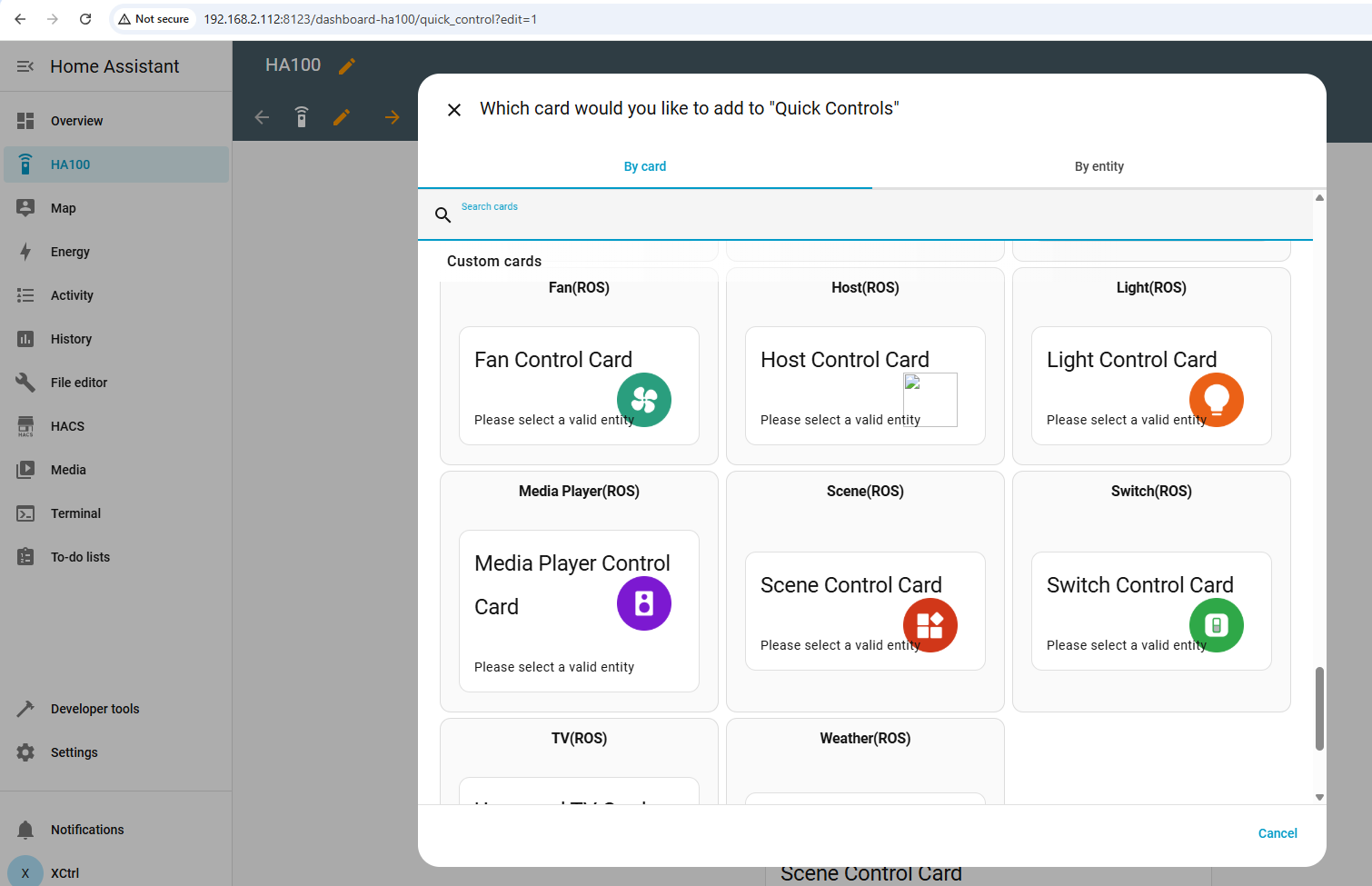
RosCard provides optimized cards for the Astrion Remote's 3.1-inch display. Here's how to add each card type to your dashboard.
Light Card
uuid is auto-generated. independent_display: true makes it full-screen.
Climate Card
TV Card
tv_type supports android_tv and apple_tv.
Media Player Card
Scene Card
mode supports immediate, delayed, and popup.
Switch Card
Cover Card
Weather Card
Fan Card
Statistics Card
📌 Note: Each card's uuid is unique and generated
automatically when you add the card. You don't need to define it manually — it's
shown here for reference.
Standard Home Assistant Cards
Astrion Remote also works with standard Home Assistant cards. These are useful for information display and basic controls.
Mini Media Player
Weather Forecast
Media Control
Picture Entity
Button
Entities
💡 Tip: Mushroom theme cards (like theme: Mushroom
above) provide a clean, modern look that works well on the Astrion Remote screen.
Views & Sections
Creating a View
type: masonry is recommended for Astrion Remote as it auto-adjusts card sizes.
Using Sections Layout
sections gives you more control over layout with multi-column grids.
Complete View Example
💡 Tip: For the best Astrion Remote experience, keep each view to 5-8 cards and use masonry layout type. Too many cards can cause lag on the 1GB RAM device.
TV Card: Key Mapping Reference
The TV Card allows you to map physical buttons to remote commands or scripts. Here's a complete reference of available keys.
Standard Keys
Numeric Keys
Custom Keys
Key Types
💡 Pro Tip: You can bind different entities
to different keys. For example, route VOLUME_UP to your AVR
while keeping CHANNEL_UP on your TV — true Harmony-style control!
Performance Tips
Astrion Remote has 1GB RAM. Here's how to keep your dashboard smooth and responsive.
- Limit cards per view: Keep each view to 5-8 cards maximum.
- Use masonry layout:
type: masonryis more efficient than grid layouts. - Avoid heavy cards: Camera feeds and complex custom cards can slow down the remote.
- Use Independent Display: Full-screen cards are more performant than dashboards with many small cards.
- Reduce entities per card: For Light Cards, keep to 3-4 lights per card.
- Refresh regularly: Pull down and refresh if the dashboard feels sluggish.
⚠️ Important: If your dashboard has more than 15 cards in a single view, you may experience UI lag. Consider splitting content across multiple views or using Independent Display for individual cards.
Troubleshooting
Dashboard Not Showing on Remote
- Refresh the remote: Pull down from the top of the screen and tap Refresh.
- Set default view: Ensure the dashboard you're editing is set as the default view for the user account used by Astrion Remote.
- Check RosCard installation: Verify RosCard is properly installed via HACS.
- Restart Home Assistant: After adding many cards, restart HA to ensure everything loads correctly.
Cards Not Appearing Correctly
- Verify entity IDs: Check that all entity IDs in your YAML are correct and exist in Home Assistant.
- Check card type: Ensure you're using the correct card type for your entities.
- Resave the card: Open the card configuration and click Save to refresh the binding.
- Clear HA cache: Clear your browser cache or restart Home Assistant.
YAML Syntax Errors
- Use a YAML validator to check your configuration.
- Check for missing commas, incorrect indentation, or mismatched brackets.
- Review the Home Assistant logs for detailed error messages.
Dashboard Slow or Laggy
- Reduce the number of cards per view.
- Remove heavy cards (camera feeds, complex custom cards).
- Restart the Astrion Remote.
- Update to the latest firmware.
🔧 Still Having Issues? Please create a forum post with: your current software version, RosCard version, your dashboard YAML configuration, and any error messages from Home Assistant logs.
Related resources
Need help with dashboard config?
Our support team and community are here to assist you.