Connect Your Astrion Remote to Wi-Fi
Follow this guide to connect your Astrion Remote HA100 to your home or office Wi-Fi network. Support 2.4GHz bands.
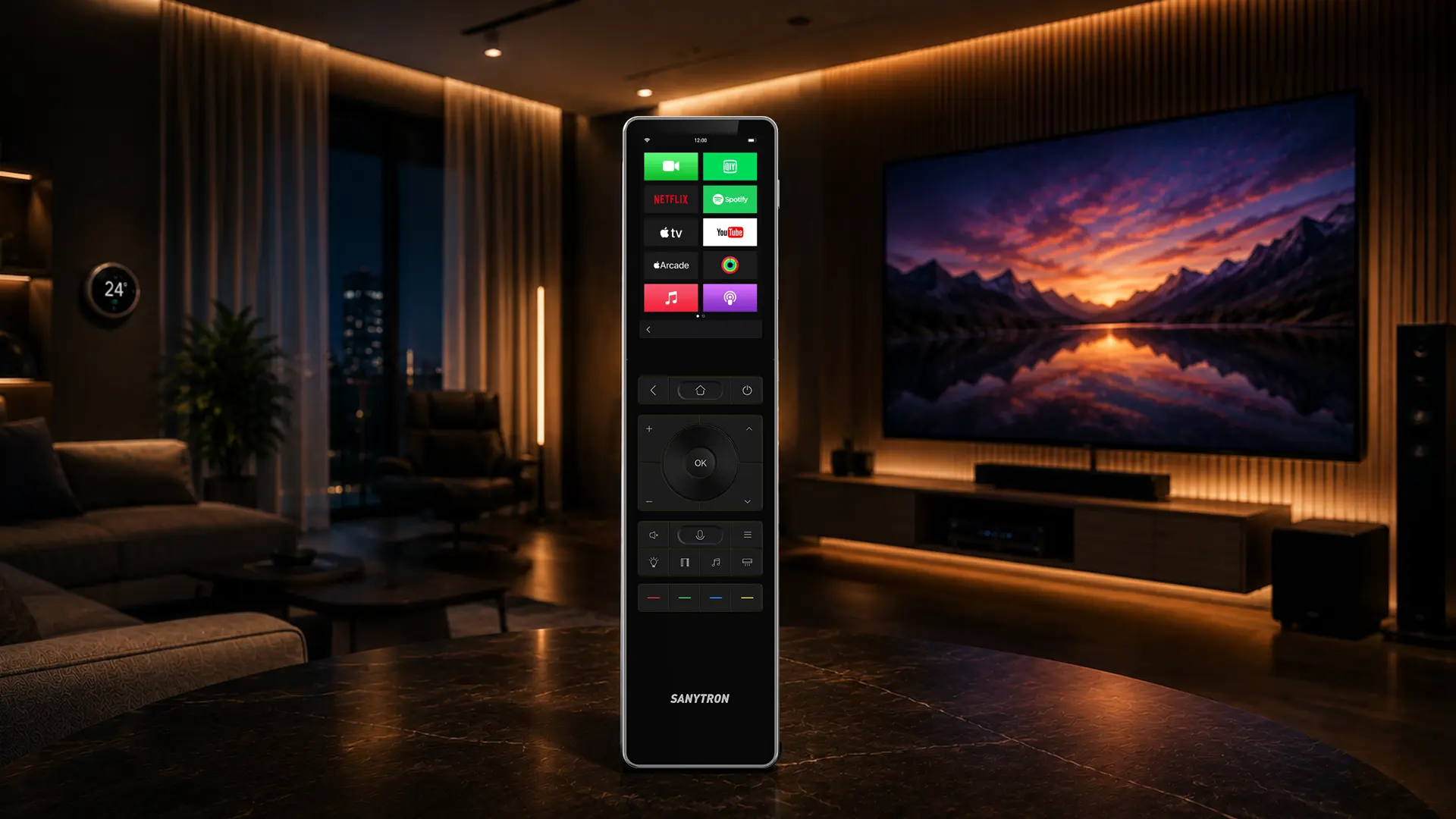
Connect to Wi-Fi
The Astrion Remote HA100 supports 2.4GHz Wi-Fi networks. Follow these steps to connect your remote to your local network.
1 Open Settings
On your Astrion Remote, tap the gear icon in the top-right corner of the home screen to open Settings. Then select Network or Wi‑Fi from the menu.
2 Select Your Network
The remote will scan for available Wi-Fi networks. From the list, tap your network name (SSID). If your network is hidden, select "Add Network" and enter the SSID manually.
3 Enter Password
Using the on-screen keyboard, enter your Wi-Fi password. Tap the eye icon to toggle password visibility and verify you've typed it correctly.
4 Tap Connect
Tap "Connect" to join the network. The remote will attempt to connect and will show a confirmation once successful.
5 Verify Connection
Once connected, the Wi-Fi icon in the status bar will show signal strength. You can also check the connection status in Settings → Network.
💡 Tip: For the best performance, use a 2.4GHz network, which can be helpful for smooth UI interactions.
Network Requirements
Supported Bands
- 2.4GHz (802.11 b/g/n) — Supported, better range
Security
- WPA2-PSK — Supported (recommended)
- Open networks — Supported (not recommended)
Network Requirements for Home Assistant
For the Astrion Remote to communicate with your Home Assistant server, both devices must be on the same local subnet. This means:
- The remote and HA server must be connected to the same router or switch.
- They should be on the same network segment (e.g., 192.168.1.x).
- Network discovery should be enabled on your router.
⚠️ Important: If your Home Assistant server is on a different subnet or VLAN, the remote may not be able to discover it automatically. In this case, you'll need to enter the HA URL manually during pairing.
Manual Network Setup
If your Wi-Fi network is hidden or not broadcasting its SSID, you can connect to it manually.
Steps to Add a Hidden Network
- Open Settings → Network → Wi-Fi
- Tap "Add Network" at the bottom of the list
- Enter your network name (SSID) manually
- Select the security type (WPA2, etc.)
- Enter your password and tap "Connect"
🔍 Note: If you're unsure about your network's security type, check your router's settings or contact your network administrator.
Troubleshooting
Network Not Found
- Check router: Ensure your Wi-Fi router is powered on and broadcasting.
- Move closer: Bring the remote closer to the router to improve signal.
- Refresh: Tap the refresh icon in the Wi-Fi settings to rescan for networks.
- Hidden network: If your network is hidden, use the manual entry method above.
Connection Fails or Times Out
- Verify password: Double-check your Wi-Fi password — it's case-sensitive.
- Check security type: Ensure your router's security type (WPA2) is supported.
- Restart: Try restarting your router and the remote, then attempt connection again.
- 2.4GHz vs 5GHz: If using 5GHz, try switching to 2.4GHz — it has better range.
Connection Drops Frequently
- Signal strength: Move the remote closer to the router or access point.
- Interference: Avoid placing the remote near other electronics that may cause interference.
- Network congestion: If many devices are on your network, try using 2.4GHz to reduce congestion.
Remote Won't Connect to Home Assistant After Wi-Fi Setup
- Ensure both the remote and your Home Assistant server are on the same network.
- Check that your Home Assistant server is running and accessible from other devices on the network.
- If the remote still can't find the server, you'll need to pair the remote manually.
📌 Note: After changing Wi-Fi networks, you may need to reconnect your Astrion Remote to Home Assistant. The remote uses the Wi-Fi connection to communicate with your HA server.
What's Next?
Your Astrion Remote is now connected to Wi-Fi. The next step is to pair it with your Home Assistant server so you can start controlling your smart home devices.
Related resources
Still having Wi-Fi issues?
Our support team and community are here to help.