RosCard Cover Card Guide
Configure the RosCard Cover Card to control blinds, curtains, shutters, awnings, and garage doors directly from your Astrion Remote. Supports position control, open/close, and tilt adjustment for blinds.
Overview
The RosCard Cover Card provides a dedicated interface for controlling cover and shade entities from your Astrion Remote. It supports a wide range of cover types — including blinds, curtains, roller shutters, awnings, and garage doors — with both position and tilt controls.
The Cover Card is designed to work with any Home Assistant cover entity,
offering a clean, intuitive interface for managing natural light and privacy in
any room.
💡 Tip: Enable Independent Display for any Cover Card you want to appear as a full-screen, dedicated view on your Astrion Remote — perfect for room-by-room shade control.
Features
Open / Close
Full open and close controls with a single tap
Position Control
Set any position between 0% (closed) and 100% (open)
Tilt Control
Adjust blind tilt angle for light and privacy control
Real-Time Feedback
Visual position indicator shows current cover state
Independent Display
Full-screen dedicated view on your Astrion Remote
Step-by-Step Configuration
1 Open Dashboard Editor
In Home Assistant, navigate to the dashboard you want to use for your Astrion Remote. Click Edit Dashboard in the top-right corner.
2 Add Cover Card
Click Add Card and search for "Cover (ROS)" or "custom:aiks-cover-card". Select it to add the card to your dashboard.
3 Configure Cover Entity
Add your cover entity to the card. The Cover Card works with any Home Assistant
cover entity.
Example Configuration:
4 Enable Tilt Controls
If your cover device supports tilt (e.g., blinds with adjustable louvers), the card will automatically display tilt controls. No additional configuration is required — the card reads the device's supported features from Home Assistant.
Configuration with Tilt Support:
5 Enable Independent Display
For any card you want to appear as a full-screen view on your Astrion Remote, enable Independent Display. This is particularly useful for room-specific shade control.
6 Save and Refresh
Click Save to apply your configuration. On your Astrion Remote, pull down from the top of the home screen and tap Refresh to load the new card.
⚠️ Important: Tilt controls are only available if your cover entity
supports the tilt_position attribute in Home Assistant. Not all covers
support tilt — check your device's capabilities.
YAML Reference
Full Parameter List
Parameter Details
- entity_id — The Home Assistant entity ID for the cover (e.g.,
cover.living_room_blinds). - uuid — A unique identifier for the card. Generated automatically when you add the card.
- independent_display — When
true, the card appears as a full-screen dedicated view on the remote. - alias — A custom display name shown on the remote instead of the entity ID.
Supported Cover Types
- Blinds: Venetian blinds, vertical blinds, pleated blinds
- Curtains: Drapes, curtains, and fabric shades
- Roller Shutters: Security shutters and roller blinds
- Awnings: Retractable awnings and sun shades
- Garage Doors: Sectional and roller garage doors
- Windows: Motorized windows and skylights
Supported Features
- Position: Set cover position from 0% (closed) to 100% (open)
- Open/Close: Full open or close with a single tap
- Tilt: Adjust blind tilt angle (if supported by the entity)
- Stop: Stop the cover at its current position
💡 Tip: The Cover Card automatically adapts its interface based on the capabilities of your cover entity. If your cover supports tilt, the card will show tilt controls. If it supports position, it will show a position slider.
Example Use Cases
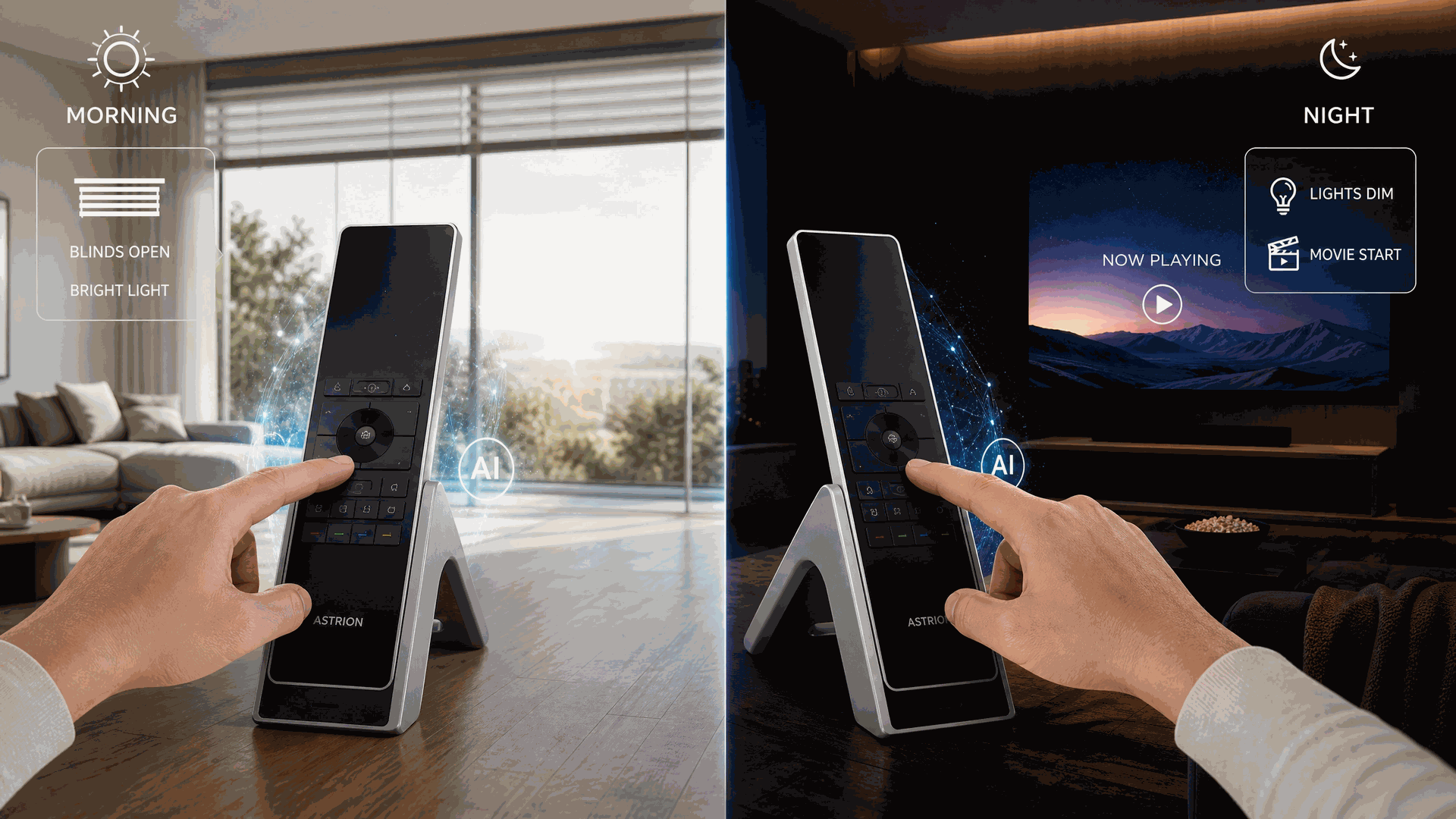
Morning Routine — Open Blinds
Part of your "Good Morning" automation — open the blinds to let in natural light when you wake up.
Movie Mode — Close Curtains
Close the curtains and dim the lights with a single tap on your Astrion Remote to create the perfect movie theater atmosphere.
Privacy Control — Tilt Blinds
Adjust the blind tilt angle to control privacy and glare while maintaining natural light in your home office.
Troubleshooting
Cover Card Not Showing on Astrion Remote
- Refresh the remote: Pull down from the top of the home screen and tap Refresh.
- Verify entity exists: Make sure the cover entity is available in Home Assistant.
- Check YAML format: Ensure your configuration uses the correct syntax and indentation.
- Update RosCard: If you're running an older version, update RosCard via HACS.
Cover Not Responding
- Check entity status: Verify the cover is available and not unavailable in Home Assistant.
- Test in Home Assistant: Try controlling the cover directly from the Home Assistant UI to rule out connection issues.
- Verify entity type: Ensure the entity is a valid
coverentity. - Check permissions: Make sure the Astrion Remote token has permission to control the cover.
Tilt Controls Not Showing
- Ensure your cover entity supports the
tilt_positionattribute. - Check the entity's supported features in Home Assistant Developer Tools.
- Some cover integrations (e.g., basic curtains) may not support tilt by default.
Position Slider Not Working
- Verify the cover entity supports position control (0-100% range).
- Some covers only support open/close (on/off) and not partial positions.
- Check the device's capabilities in Home Assistant Developer Tools.
🔧 Note: After updating RosCard to a new version, you may need to resave all your Cover Cards to refresh the binding. This is a known requirement for version updates.
Related resources
Need help with Cover Card?
Our support team and community are here to assist you.