RosCard TV Card Guide
Configure the RosCard TV Card to control your Android TV, Apple TV, and other media players directly from your Astrion Remote. Use script binding to create Harmony-style activities and multi-device workflows.
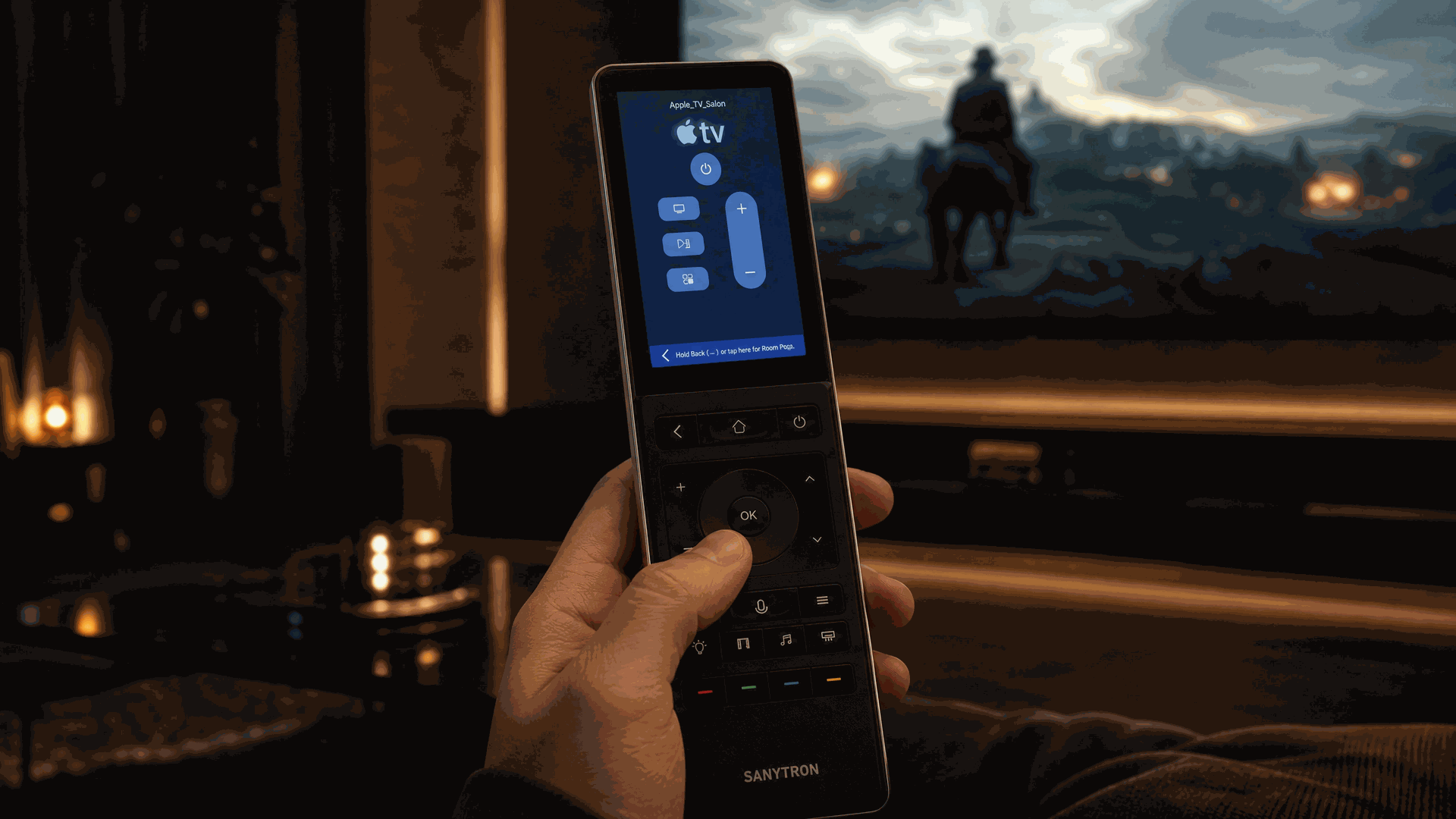
Overview
The RosCard TV Card provides a dedicated interface for controlling television and media player devices from your Astrion Remote. It supports multiple device types including Android TV, Apple TV, and generic media players, with full button mapping and script binding capabilities.
The TV Card is designed to work alongside Home Assistant scripts to create Harmony-style activities — where a single button press can trigger a sequence of actions across multiple devices.
💡 Tip: The TV Card supports script binding for buttons like POWER, Volume, and Navigation[reference:2]. Use this to route volume control to an AVR while navigation controls stay with the TV — perfect for complex home theater setups.
Features
Multiple TV Types
Support for Android TV, Apple TV, and generic media players
Full Button Mapping
Power, volume, navigation, channel, and numeric input
Script Binding
Bind Home Assistant scripts to any button for complex automation
Activity-Based Workflows
Create Harmony-style activities using HA scripts and automations[reference:3]
Numeric Keypad
Digital number pad for channel input and direct source selection
Step-by-Step Configuration
1 Open Dashboard Editor
In Home Assistant, navigate to the dashboard you want to use for your Astrion Remote. Click Edit Dashboard in the top-right corner.
2 Add TV Card
Click Add Card and search for "TV (ROS)" or "custom:aiks-tv-card". Select it to add the card to your dashboard.
3 Configure TV Type and Entity
Select the TV type and configure the primary entity for your device.
Android TV Configuration:
Apple TV Configuration:
4 Map Buttons and Scripts
Map physical buttons to remote entities or Home Assistant scripts.
Example: Power Button Mapping
Example: Script Binding for Activity
5 Save and Refresh
Click Save to apply your configuration. On your Astrion Remote, pull down from the top of the home screen and tap Refresh to load the new card.
⚠️ Important: When creating Harmony-style activities, all logic should be handled inside Home Assistant scripts[reference:4]. The TV Card simply triggers these scripts — this makes your setup more flexible and easier to maintain than traditional Harmony remotes.
YAML Reference
Full Parameter List
TV Types
- android_tv — Android TV devices (NVIDIA Shield, Sony, etc.)
- apple_tv — Apple TV devices
Button Keys
- POWER — Power toggle
- VOLUME_UP / VOLUME_DOWN — Volume control
- CHANNEL_UP / CHANNEL_DOWN — Channel control
- NAVIGATION — Directional pad (UP, DOWN, LEFT, RIGHT, OK)
- BACK / HOME — System navigation
- NUMBER_0 through NUMBER_9 — Numeric input
Button Action Types
- remote — Send a command to a Home Assistant remote entity
- script — Trigger a Home Assistant script[reference:5]
💡 Pro Tip: For advanced setups, you can bind volume controls to a different entity than navigation controls. For example, route volume to an AVR while keeping navigation on the TV — giving you true Harmony-style flexibility.
Activity-Based Workflows
The TV Card is designed to support Harmony-style activity workflows using Home Assistant scripts. This approach gives you significantly more flexibility than traditional harmony remotes[reference:6].
Typical Activity Flow
- Turn on TV — Send POWER command via remote entity or IR
- Turn on AVR — Send POWER command via remote entity or IR
- Select source — Switch TV input or AVR source
- Route volume control — Map volume buttons to AVR instead of TV
- Update remote context — Change button mappings based on active activity
Example: Movie Night Script
💡 Tip: All activity logic is handled inside Home Assistant. This makes your setup more flexible, easier to debug, and maintainable than traditional harmony remotes. You can update activities without touching the Astrion Remote configuration[reference:7].
Troubleshooting
TV Card Not Showing on Astrion Remote
- Refresh the remote: Pull down from the top of the home screen and tap Refresh.
- Verify entity exists: Make sure the media player or remote entity is available in Home Assistant.
- Check YAML format: Ensure your configuration uses the correct syntax and indentation.
- Update RosCard: If you're running an older version, update RosCard via HACS.
Button Controls Not Responding
- Check entity status: Verify the remote or media player entity is available in Home Assistant.
- Test in Home Assistant: Try sending the command directly from the Home Assistant UI to rule out connection issues.
- Verify script exists: If using script binding, ensure the script ID is correct and the script is enabled.
- Check command values: Verify the command value matches what the remote entity expects (e.g., "POWER" vs "power").
Volume Control Not Working as Expected
- If volume buttons are controlling the wrong device, check that the
entity_idin the button mapping points to the correct remote entity. - For activity-based setups, ensure your script handles volume routing correctly.
- Some Android TV devices may require specific volume commands — check your device's documentation.
Script Not Triggering
- Verify the script exists in Home Assistant and is enabled.
- Check that the
entity_idin the button mapping matches the script'sentity_id. - Test the script directly from Home Assistant to ensure it works.
- Check the script's
mode— if it'ssingle, it won't trigger while already running.
🔧 Note: After updating RosCard to a new version, you may need to resave all your TV Cards to refresh the binding. This is a known requirement for version updates.
Related resources
Need help with TV Card?
Our support team and community are here to assist you.