RosCard Architecture
How RosCard bridges the Astrion Remote with Home Assistant — a deep dive into the integration architecture, WebSocket API, real‑time state sync, and physical button integration.
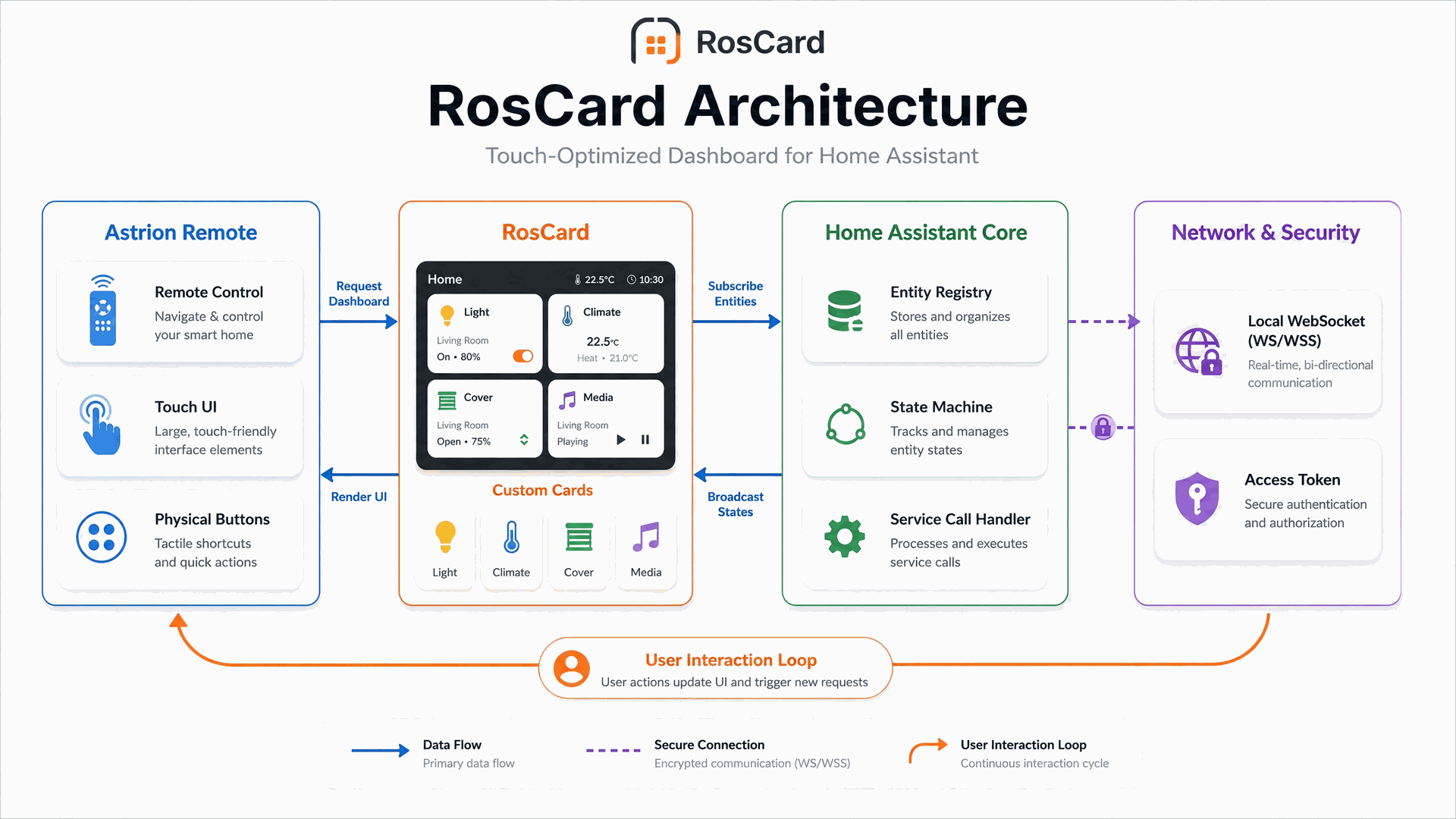
High‑Level Architecture
Home Assistant remains the single source of truth for all entities (lights, climate, media players, etc.). RosCard is a custom dashboard/card set installed in HA (via HACS) that:
- Subscribes to entity states over HA's WebSocket API
- Formats that data into a compact, touch‑friendly UI
- Exposes cards that know how to call HA services
The Astrion Remote connects to HA using a long‑lived access token, requests the RosCard dashboard, and renders it on its 3.1" screen. User actions (taps, button presses) are sent back to HA via RosCard's service calls.
Architecture Diagram
The diagram below illustrates the RosCard architecture at a glance — four key layers and the core data flow between them.

💡 Diagram Legend: The four swimlanes represent the Astrion Remote, RosCard, Home Assistant Core, and Network/Security layers. Numbered arrows show the sequence of data flow from user action to state update and back.
Component Breakdown
Astrion Remote (HA100)
- Touch UI / Physical Buttons — Captures taps, sliders, D‑pad, volume, custom buttons.
- RosCard Renderer — Renders the RosCard dashboard on the 3.1" screen. Maps UI events to RosCard card actions.
- WebSocket Client — Maintains a persistent connection to Home Assistant. Handles authentication with a long‑lived access token.
RosCard (Home Assistant Custom Dashboard)
- Custom Cards — Light, Climate, Cover, Media, Scene, Weather, Switch, etc. Each card is bound to one or more HA entities.
- Entity Binding Layer — Maps card configuration to specific entities (e.g.
light.living_room). - WebSocket API Handler — Subscribes to state changes for bound entities. Receives real‑time updates from HA.
- Service Call Translator — Converts UI interactions into HA service calls (
light.turn_on,climate.set_temperature, etc.).
Home Assistant Core
- Entity Registry — All entities: lights, climate, covers, media players, sensors, binary_sensors, input_booleans, etc.
- State Machine — Holds current state of every entity. Emits state change events.
- Service Call Handler — Executes service calls and updates entity states.
- Automations & Scripts — React to state changes and service calls; can orchestrate complex behavior.
Network / Security
- Local WebSocket (WS/WSS) — Bi‑directional channel between Astrion and HA.
- Access Token Authentication — Long‑lived token created in HA and scanned/entered on Astrion.
- Local Network — Ensures low‑latency communication; no cloud dependency for control.
Detailed Data Flow
For those who want to understand the complete data flow — from dashboard request to UI refresh. This 16‑step sequence shows every interaction between components. (For technical users who want full visibility of the integration)

🔍 16‑Step Data Flow: This complete sequence covers dashboard request → connect + auth → secure WebSocket → entity subscription → state updates → service calls → broadcast → UI refresh. All numbered arrows in the diagram correspond to this sequence.
Setup Integration
- Install HACS in Home Assistant (if not already present)
- Add RosCard as a custom repository in HACS:
https://github.com/yyqclhy/RosCard— Category: Dashboard - Install RosCard via HACS and restart HA if prompted
- Create a long‑lived access token in HA:
Profile → Security → Long‑lived tokens → name it (e.g. "Astrion Remote") - On Astrion: Settings → Home Assistant → Scan QR (or enter URL + token manually)
Day‑to‑Day Operation
1. Dashboard & Card Creation
In HA, create a Lovelace dashboard dedicated to Astrion. Add RosCard cards (Light, Climate, Cover, Switch, Scene, Media, Weather, etc.) bound to specific HA entities. Enable "Display Independently" for full‑screen access on the remote.
2. Real‑Time State Sync
RosCard uses HA's WebSocket API to subscribe to entity state changes. When a light turns on elsewhere (e.g., via automation or voice), HA pushes the new state to RosCard, which immediately updates the Astrion UI — no polling required.
3. Control Actions
Taps/sliders on a Light card → RosCard calls light.turn_on /
light.turn_off / light.turn_on with brightness/color.
Media/TV cards → calls media player services. Each UI interaction is translated
into the appropriate HA service call.
Physical Button Integration
RosCard ties into the Astrion Remote's hardware buttons. In TV/Media cards, you can map physical buttons (directional pad, volume, mute, custom buttons) to specific actions or entities:
- Volume +/- buttons can be bound to a DSP zone's volume entity
- Custom buttons can trigger scripts or scenes
A Global Buttons toggle determines whether buttons follow global shortcut mappings everywhere, or switch to card‑specific mappings when inside that card (e.g., TV screen). This lets the remote behave like a traditional AV remote while still controlling arbitrary HA entities.
Security & Network
- Authentication via long‑lived HA access tokens — revocable if the remote is lost
- Communication over local WebSocket (optionally HTTPS/WSS)
- No HA data is permanently stored on the remote
- Astrion and HA must be on the same network (or reachable over LAN) for discovery and low‑latency control
💡 In one sentence: RosCard is a Home Assistant Lovelace extension that exposes HA entities as touch‑ and button‑optimized cards; Astrion connects to HA with a token, renders those cards, and sends user actions back as HA service calls, keeping everything in real‑time sync.
Related Resources
Still have questions about RosCard?
Our support team and community are here to help.