Where is the Power Button?
The power button on your Astrion Remote is not the on/off button you see on the screen. It's a physical button on the right side of the remote, near the top, next to the screen.
Quick Answer
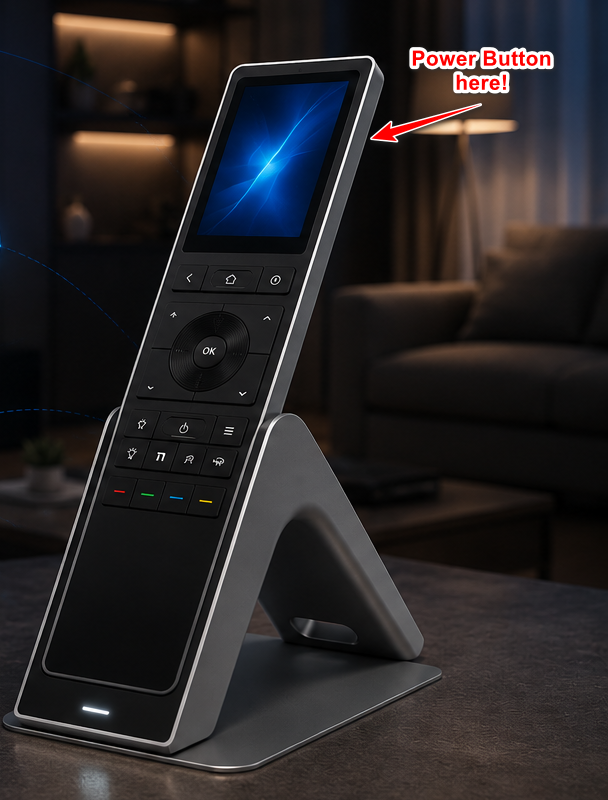
Right Side, Near the Screen
The power button is a physical button located on the right edge of your Astrion Remote, near the top, right next to the screen.
Press and hold for 3-5 seconds to turn the remote on or off.
⚠️ Important: The on/off button on the screen (bottom-right corner) is a software button that only works after the remote is already powered on. It controls the screen's display state, not the remote's power.
Why Is the Power Button Designed This Way?
You might be wondering: "Why isn't the power button more obvious?"
The answer is rooted in industrial design philosophy. Astrion Remote was designed to feel smooth, minimal, and intuitive — not cluttered with protruding buttons that disrupt the form factor.
This design choice is inspired by some of the most iconic products in modern technology.
Design Philosophy: Form Follows Function
Tesla Door Handles
Tesla's door handles are flush with the body — they don't protrude. You press one end to pop the handle out. Initially unintuitive, but once you know it, it feels natural.
iPhone & iPad
Apple's power buttons are subtle, flush, and placed on the side edge. They're not labeled. They don't shout. But they're always exactly where you expect them to be.
Apple Watch
The Digital Crown and side button are flush with the case. They blend into the design — yet they're the primary control points.
Astrion Remote
The power button is intentionally subtle to preserve the clean, minimalist form factor. It's not hidden — it's just integrated.
💡 The Principle: Good design doesn't need labels. It doesn't need to shout. It's discovered through use — and once discovered, it feels obvious. This is why the Astrion Remote's power button is placed exactly where your thumb naturally rests when holding the remote.
How to Power On Your Astrion Remote
1 Hold the Remote Naturally
Pick up your Astrion Remote as you normally would. Your thumb or index finger will naturally rest near the top-right edge.
2 Feel for the Button
Along the right edge, near the top, you'll feel a subtle, slightly recessed button. It's flush with the body — not protruding.
3 Press and Hold
Press and hold the button for 3-5 seconds. The screen will activate and show the Astrion logo.
4 You're Ready
Once the screen is on, you can use the on-screen interface to control your smart home. The on/off button on the screen (bottom-right) now works to control the screen display.
✅ Done! If the remote turns on, your power button is working perfectly. The design is intentional — not a flaw.
Common Misunderstandings
-
❌ "The remote won't turn on!"
✅ You may be pressing the on/off button on the screen. That button only works after the remote is already powered on. The real power button is on the right side. -
❌ "The power button is broken."
✅ The power button is designed to be subtle. Press firmly and hold for 3-5 seconds. If the screen turns on, the button is working. -
❌ "Why didn't they put it on the front?"
✅ Front buttons disrupt the clean design and are prone to accidental presses. The side placement is intentional and ergonomic.
🔍 Still having trouble? If you've pressed the side button for 5 seconds and the screen doesn't turn on, the battery may be completely drained. Place the remote on the charging dock for 15-20 minutes, then try again.
Video Tutorial
For a visual demonstration, watch this short video showing the power button location and how to use it:
Power Button Location & Use
Learn where to find the power button and how to use it correctly
Watch on YouTube →Related resources
Still can't find the power button?
Our support team and community are here to help.